
Create your own digital cookbooks from recipes you save within the Simple Recipe app. Download the app and create your free account to start saving recipes and creating cookbooks today!


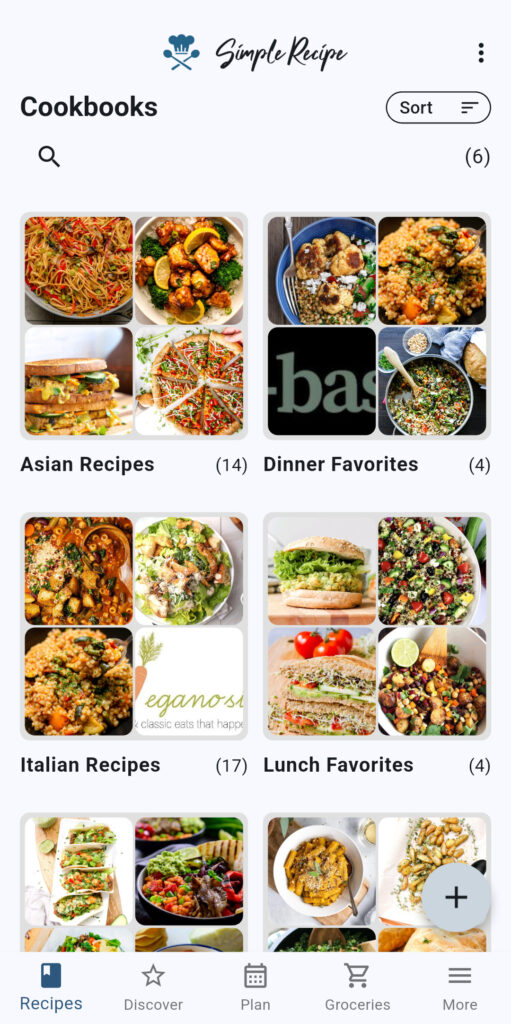
The first step in creating a cookbook is to decide what the theme will be for the collection you’re curating. A common use for cookbooks is to group recipes by type of food (Chinese recipes, Mexican recipes, Italian recipes, etc.) or by ingredient (chicken recipes, beef recipes, seafood recipes, etc.). Cookbooks can also be used to store favorites for hosting or friends that can be easily shared.
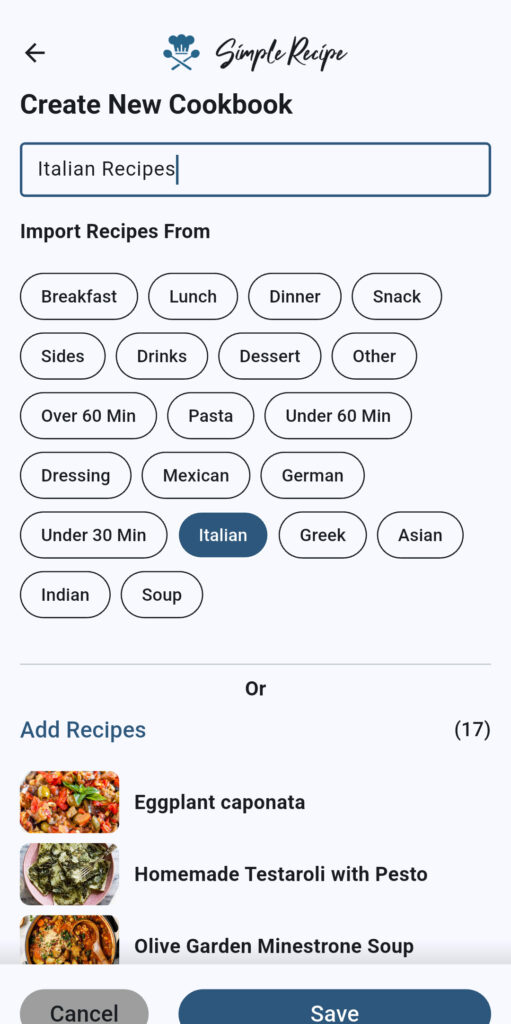
Recipes can be added to cookbooks in two different ways: manual addition or automatic import. You can select recipes to add to your cookbook one by one using the search function, or you can import multiple recipes at once by importing all the recipes with a specific tag.
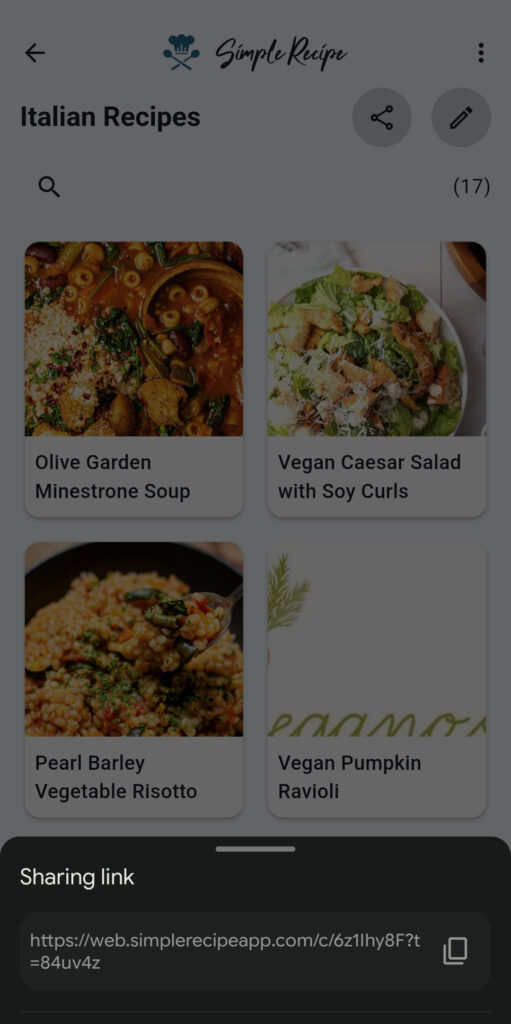
Once you’ve finished creating your cookbook, you can generate a share link to share the cookbook with family members or friends. Recipients will need to have the Simple Recipe app on their device to be able to click the link and import the cookbook into their app.
Cookbooks allow you to group recipes into collections that make sense for you and your workflow. Regardless of whether you want your recipes sorted by type of food, day of the week, ingredient, or some other organization format, Simple Recipe lets you keep things stored exactly the way you like.
Whether through tags or manual selection, you are free to organize your recipes into cookbooks any way you like. There is also no limit on the number of cookbooks you can create.
Cookbooks make sharing recipes fast and easy. Instead of having to share recipes one at a time, you can share multiple recipes with just one link via cookbooks. Any user you share your cookbook with can import the cookbook and all of the contained recipes into their app with the click of a link.
Start collecting and organizing all of your favorite recipes in one convenient and easy-to-use location today!
Simple Recipe is free to use, and you can create and organize cookbooks at no cost. However, you’ll be limited in how many recipes you can add to your account on the free plan. The premium plan allows you to add and save unlimited recipes to your account. Premium also lets you sync your data across devices.
Yes, you can add the same recipe to several different cookbooks. Doing so allows you to curate many different collections of recipes that may have some overlap.
Removing a recipe from a cookbook will only remove the recipe from the cookbook. This action will not delete the recipe from your app. The same goes for deleting cookbooks. Deleting a cookbook will not delete all the recipes in the cookbook from your app.
One of the main benefits of the cookbook feature in the app is to be able organize recipes into collections. You can organize your recipes any way that you like. You can create cookbooks for types of meals, types of courses, types of ingredients, types of food, dietary needs, and more. The cookbooks you create and the recipes you add to them are entirely up to you.
There is no limit to the number of cookbooks you can create. The app will allow you to create an unlimited number of cookbooks.
Yes, you can share your cookbooks with other app users. In fact, cookbooks offer a very convenient way to share multiple recipes at once. The app will generate a share link that you can share with other users. Once the link is clicked, it will import the cookbook and all of the recipes in the cookbook into the other user’s app.
When you share a cookbook with another user, they receive a copy of that cookbook. This means that there is no cloud sync, so any changes the user makes to the cookbook or recipes in the cookbook after the cookbook is shared will not sync to your device and vice versa.
Cookbooks don’t copy recipes. Instead, they pull from the existing recipe file in the app. So, any updates you make to a recipe will reflect in the cookbook.
Cookbooks can be synced across devices with the premium plan. When you subscribe to premium, you can log in to your account on any device and see all your recipes in cookbooks. Cross-device syncing can be very useful when there is more than one cook in the house, as it enables anyone to view/edit recipes and cookbooks as needed.
Yes, we took a native-first approach when developing the app, instead of being cloud-first. This means that all your data is stored on your device so that the app still works even when you’re offline. The only thing that won’t work while offline is cross-device syncing. So, if new recipes or cookbooks are added to your account on another device, you won’t see them until your device is back online to perform a sync.